


Copilot Tips and Features: Image Assistance-Tech Tip for June 4, 2024
In this month’s Tech Tips, we discuss accessibility features and tools. We walk-through Copilot’s capabilities related to identifying images, speech-to-text features, along with built-in Windows system features that you can use in conjunction with Copilot (Magnifier), and more generally, the Accessibility Checker tool (found in specific Microsoft 365 apps). Let’s begin with this week’s Tech Tip which explores how Copilot can identify and describe distinct characteristics and give context to submitted images or screenshots to assist individuals with low vision or blindness.
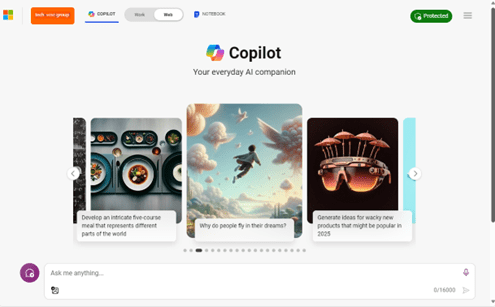
Copilot Image Accessibility Features
Allow Copilot to assist you to identify and describe what is in a specific image. Image identification is available in Copilot in a browser and Copilot for Windows 11 (Windows 10 in preview).

Access Copilot in Windows:
- Select ‘Windows Logo’ key + ‘C’ key (keyboard shortcut). Copilot side panel will slide into view. If Copilot ‘Work’ is selected, toggle to Copilot ‘Web.’
Access Copilot in a Browser:
- Open a new browser window or browser tab.
- Navigate to www.bing.com/copilot or copilot.microsoft.com (toggle to Copilot ‘Web’).
Use Copilot Image Accessibility Features:
- In Copilot’s prompt area:
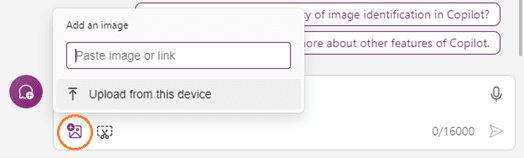
- Select the ‘Add an image’ button:
- Paste an image from the clipboard or add an image link in the field provided.
- Alternatively, select ‘Upload from this device,’ to upload your own image.
- Type the prompt: “Please describe this image.”
- Select ‘Submit’ to submit the image to Copilot.
- Select the ‘Add an image’ button:
-
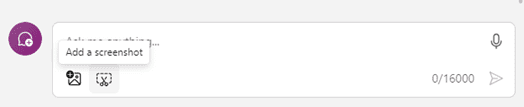
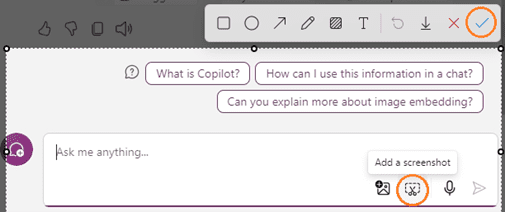
- Select the ‘Add a screenshot’ button:
- ‘+’ cursor will appear.
- Click and drag cursor to capture the area you would like image to appear as.
- Select ‘Done’ (checkmark) button to add screenshot to Copilot prompt area. Type the prompt: “Please describe this image.”
- Select ‘Submit’ to submit the image to Copilot.
- Select the ‘Add a screenshot’ button:
TIP: The ‘Add a screenshot’ feature is not available in the browser version.
Access Copilot on a Mobile Device (iOS/Android):
- Download Microsoft Copilot from Apple or Google Play app store (dependent on device).
- Alternatively, download the Microsoft 365 app and access Copilot.
- You must be assigned a Copilot license.
- To use the app, you must be logged in with your ‘work account’ (Microsoft Entra ID).
Use Copilot Image Accessibility Features:
- Open the Standalone Copilot app:
- From Copilot’s bottom menu, select the ‘Camera’ icon button.
- Take a screenshot or select from photos already stored on your phone.
- Open the Microsoft 365 app:
- Select the ‘Copilot’ button from the bottom menu.
- From Copilot’s prompt area, select the ‘Image’ button.
- ‘Upload and continue with Copilot’ menu will appear.
- Select from ‘Camera,’ ‘My Captures,’ or ‘Image library’ to add an image.
Prompt Copilot to Describe the Image:
- Before submitting the image to Copilot, add your prompt:
- Type “Describe this image to me,” and select ‘Submit.’
- Copilot will generate a description to the best of its ability.
- Copilot may also provide reference links and further related prompt ideas to try.
- When prompting Copilot with additional questions related to images submitted, reference the previous submission within your prompt conversation:
- Initial Question with Image Submission: “Describe the image to me.”
- Follow-up: “Describe the colors of the image I submitted earlier to me.”
- Follow-up: “In the image I submitted earlier, how does the image relate to [topic].”
- Copilot needs natural language to give it context and guidance so it can associate the image submitted earlier with more current conversational queries.
- Alternatively, submit the same image with each new question.
TIP: Copilot will analyze any image submission but does note that any ‘Privacy blur settings,’ will hide faces and that ‘the AI will not be able to analyze these types of images.’
TIP: Copilot’s generated response to any images depends on the quality and specificity of the images submitted. Copilot will only allow one image to be submitted at a time.
Be sure to follow along with us in our Copilot series to read more about Microsoft Copilot for Microsoft 365 apps.
Reach Out to TechWise Group
Interested in learning more about Copilot? Reach out to TechWise Group. We’ll help you make the most of your Microsoft tools.
Important Microsoft Announcements:
- If you have not already moved to NCE licensing for your organization or if you have any questions about upcoming renewals, please contact us at gettechwise@techwisegroup.com to understand your options.
- MFA is the best way to prevent cyberthreats. If you have not enabled MFA in your organization, let us help you put a plan in place.
- Windows Server 2012 and 2012 R2 Extended Support ended on October 10, 2023. If your organization is still running these operating systems, please contact us to discuss your options.
- Microsoft expands Copilot licensing for small-to-medium businesses (January 15, 2024). Reach out to TechWise Group to discuss your options.
- April 1, 2024, Microsoft announced global changes to Teams licensing. Please reach out to TechWise Group with any questions.
- Classic Teams client reaches end of availability. Microsoft extends time to July 01, 2024, for Admins to address any related issues.
- July 9, 2024, marks the end of support (EOS), for SQL Server 2014. Please reach out to TechWise Group to explore your options.
- Windows 10 reaches the end of support on October 14, 2025. Please contact us to discuss your options.