


New features in Microsoft Office 365 – Keep Messages Secure
When you need to protect the privacy of an email message, encrypt it. Encrypting an email message in Outlook means it’s converted from readable plain text into scrambled cipher text. Only the recipient who has the private key that matches the public key used to encrypt the message can decipher the message for reading. Any recipient without the corresponding private key, however, sees indecipherable text. Outlook supports two encryption options which are S/MIME encryption and Office 365 Message Encryption or Information Rights Management (IRM). One of the amazing new updates to email encryption in Microsoft Office is the addition of the new Encrypt button!
The Encrypt button now replaces the Permissions button and contains options for S/MIME and IRM. To encrypt a single message:
 Select the Options tab, in the More Options group, click the dialog box launcher in the lower-right corner.
- Click Security Settings, and then select the Encrypt message contents and attachments check box.
- Compose your message, and then click Send.
 Select the Options tab, in the More Options group, click the dialog box launcher in the lower-right corner.
If you choose to encrypt all outgoing messages by default, you can write and send messages the same as you do with any other messages. In this case case; all potential recipients must have your digital ID to decode or view those messages.
- On the File tab, click Options > Trust Center > Trust Center Settings.
- On the E-mail Security tab, under Encrypted e-mail, select the Encrypt contents and attachments for outgoing messages check box.
- To change additional settings, such as choosing a specific certificate to use, click Settings.
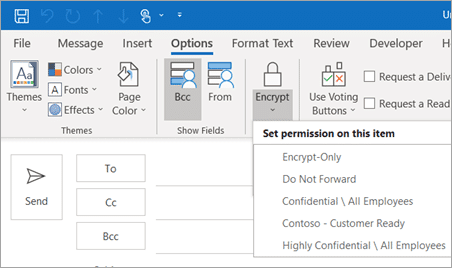 On the File tab, click Options > Trust Center > Trust Center Settings.
All of your encryption options can be found in one place to easily manage the security of your email messages. TechWise Group is happy to walk you through Office 365 migration and deployment. Click here to get started!
Countdown to Windows 7 End of Extended support