


New features in Microsoft Office 365 – Lost in Translation
In our last Tech Tip, we shared how swiftly users can communicate to collaborate on projects using the Microsoft Office @mentions feature. In today’s Tech Tip, you’ll discover how easy it is to communicate in different languages with the help of the Translator for Outlook add-in feature. Translator for Outlook translates the words in your email on the fly. The translation is immediate and is displayed next to the reading pane in your mailbox. Users can translate emails with just one click, and without needing to switch between apps to get translation. This feature enables individuals and organizations to communicate effectively across languages in Outlook on any platform or device.
 Install the add-in from the Office Store then simply launch the add-in.
- Once the Translator for Outlook is installed, a Translate Message button appears on your ribbon.
- Select the message you want to translate.
- From the Home tab, select Translate Message.
 Install the add-in from the Office Store then simply launch the add-in.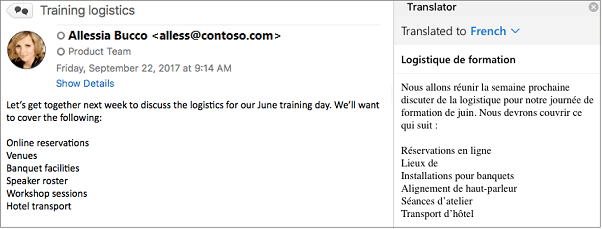
- In the Translator window, select the language to which you’ll translate your message.
- The translated message is displayed. Select X at the top of the Translator window to close it.
 The message will preserve its original formatting. Users can view the translated message with all of the original content & formatting including images, tables, and links. The Translator for Outlook add-in offers an in-app email translation experience, providing you with a simple way to translate and read messages in your preferred language across devices. TechWise Group is happy to walk you through Office 365 migration and deployment. Click here to get started!
Stay tuned this month as we fill you in on all the amazing, user-friendly tricks and features that are now available in the Office 365 Suite!
Countdown to Windows 7 End of Extended support