


Running Windows on a Mac
Have you been using a Windows device for the longest time but are now switching to a Mac? Are you worried about the user interface differences between those two? Let us tell you that there is no reason to be worried! In fact, you can simply run Windows with its familiar interface on your Mac device! There are two ways to do so: Dual Booting, which is a little more difficult to set up but provides you with better functionality, and Virtualization, which is fairly simple to set up. Keep reading to find out more about those methods!
 Dual Booting
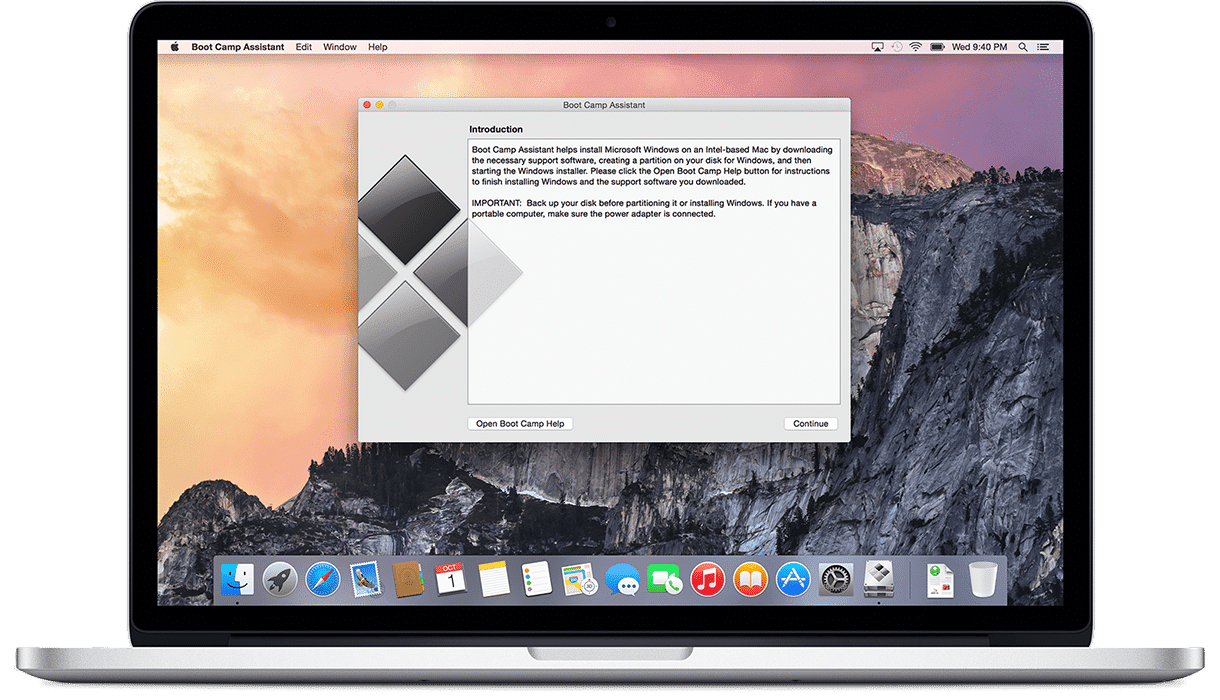
Dual booting is something that Apple provides to Mac Book users through the application known as Boot Camp Assistant, which comes with every Mac. This application allows Mac Book users to start up their computers using either the traditional macOS software or Windows. The way this works is the Boot Camp Assistant application can split your Mac Books hard drive into two separate sections called partitions. One partition of the hard drive is dedicated to running your macOS software while the other runs Windows. While using Windows, your Mac will use all of its processing power and tools towards running Windows and vice versa for macOS. Dual Booting is great because it gives you the ability to run multiple operating systems all on one device. The only downside of Dual Booting is that when you are running Windows you cannot access the traditional Mac Book apps like messages, photos, etc.
Virtualization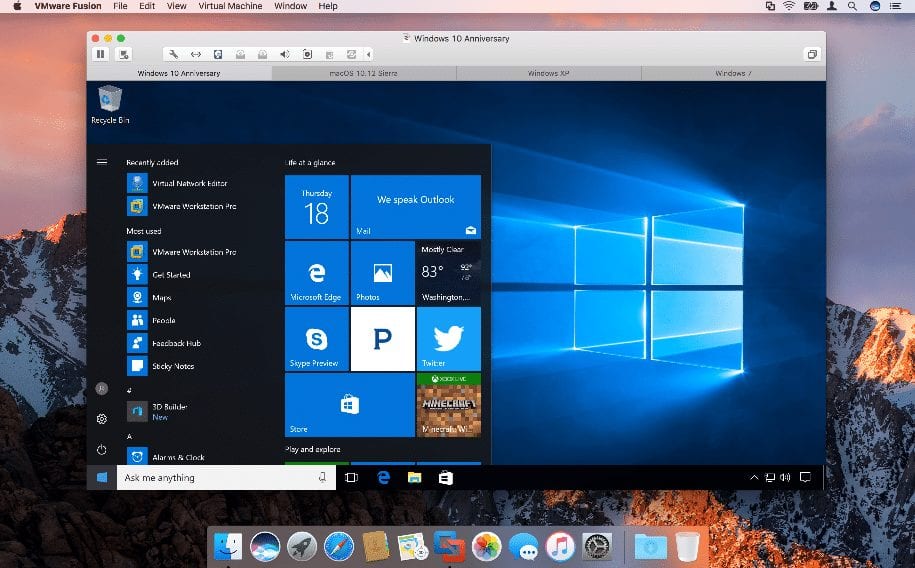
Virtualization is the other method for running Windows on your Mac Book. Virtualization is appealing because you don’t have to split your hard drive into two separate partitions. Instead, you download a virtualization program, such as Parallels Desktop for example. The program runs just like any other application on your Mac and allows you to use your machine like a PC. The downside of using Virtualization to run Windows is that you are running two Operating Systems at the same time, which can slow down your Mac as it takes a lot of power to do this. You should have no problem using the basic functions, but if you wanted to play a game with fairly high-end graphics you may run into problems.
Note: There are other applications and methods that allow you to run Windows on a Mac, but the two mentioned above are the most common and popular ones.