
While You Were Away… Here’s the Scoop on Who Did What When!
If you use PowerPoint on the daily like us, there is a super cool capability worth mentioning that lets you know when someone makes changes to your shared deck. This week, we are introducing you to a new feature that Microsoft calls “While You were Away.” It is a huge time-saver when it comes to PowerPoint because it lets you see how your presentation has evolved over time by showing you where and when your colleagues made changes or comments. This feature is only available to Office 365 subscribers and also applies to shared Word documents and Excel spreadsheets.
How Do I Use This Functionality
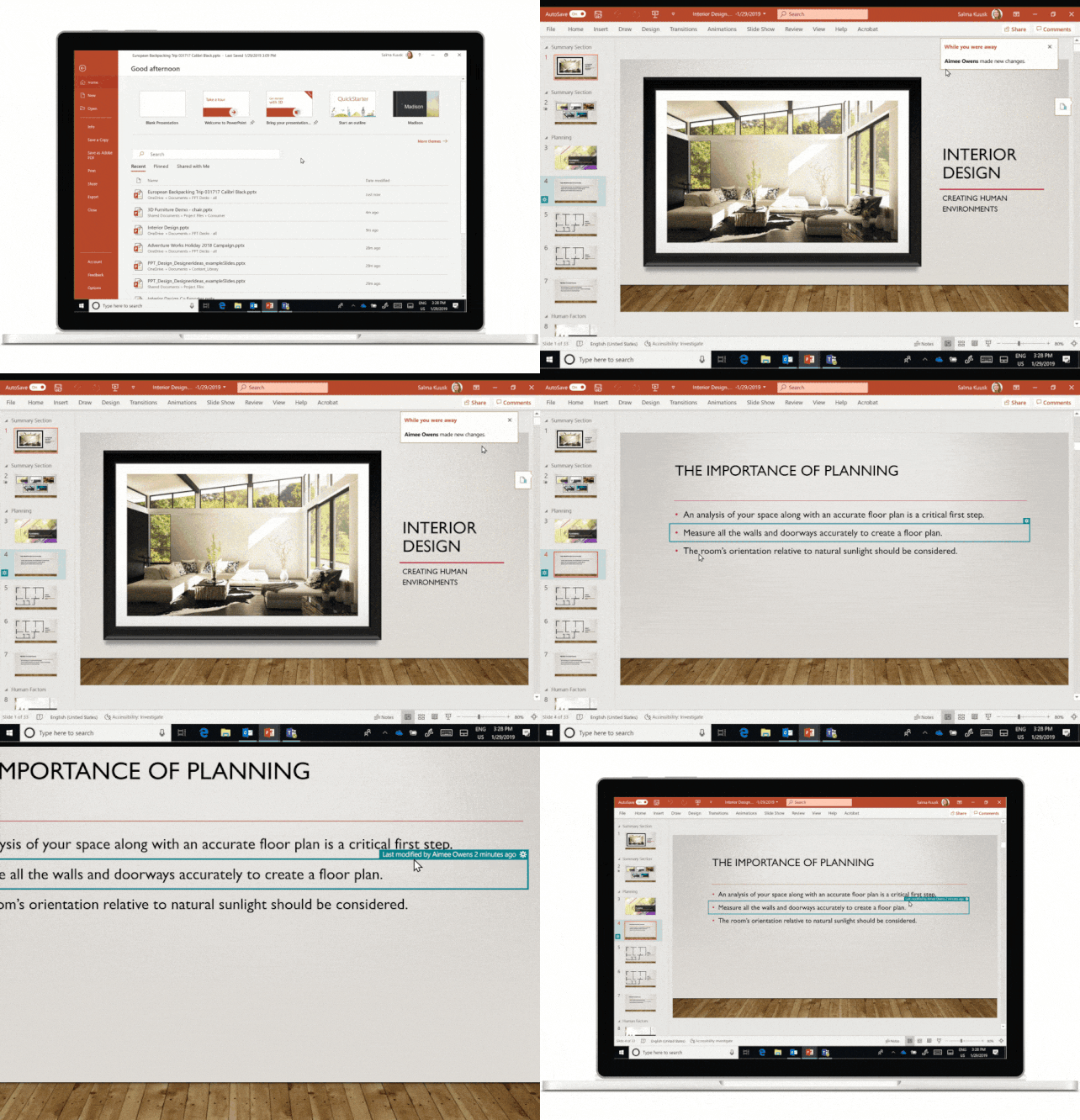
Step 1: Let’s say you’ve been working on a PowerPoint deck with others. That means you’ve already saved the file in the cloud and you’ve shared it with a few colleagues so that they can work on it too. It’s been a minute since you’ve opened the deck, so let’s open it again to see who made changes.
Step 2: You will see a “While You Were Away” banner pop up in the upper right corner of your presentation. It tells you the names of the people who made modifications.
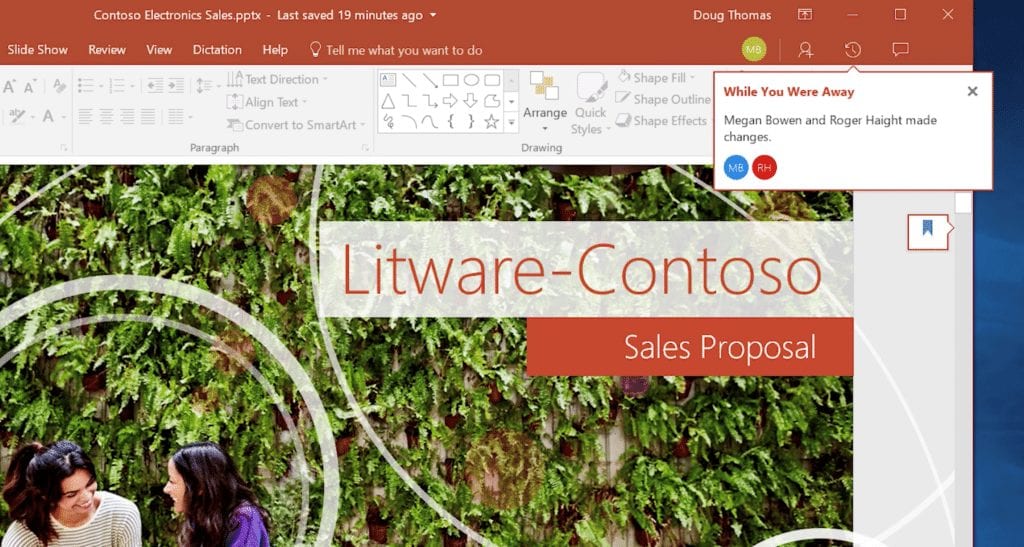
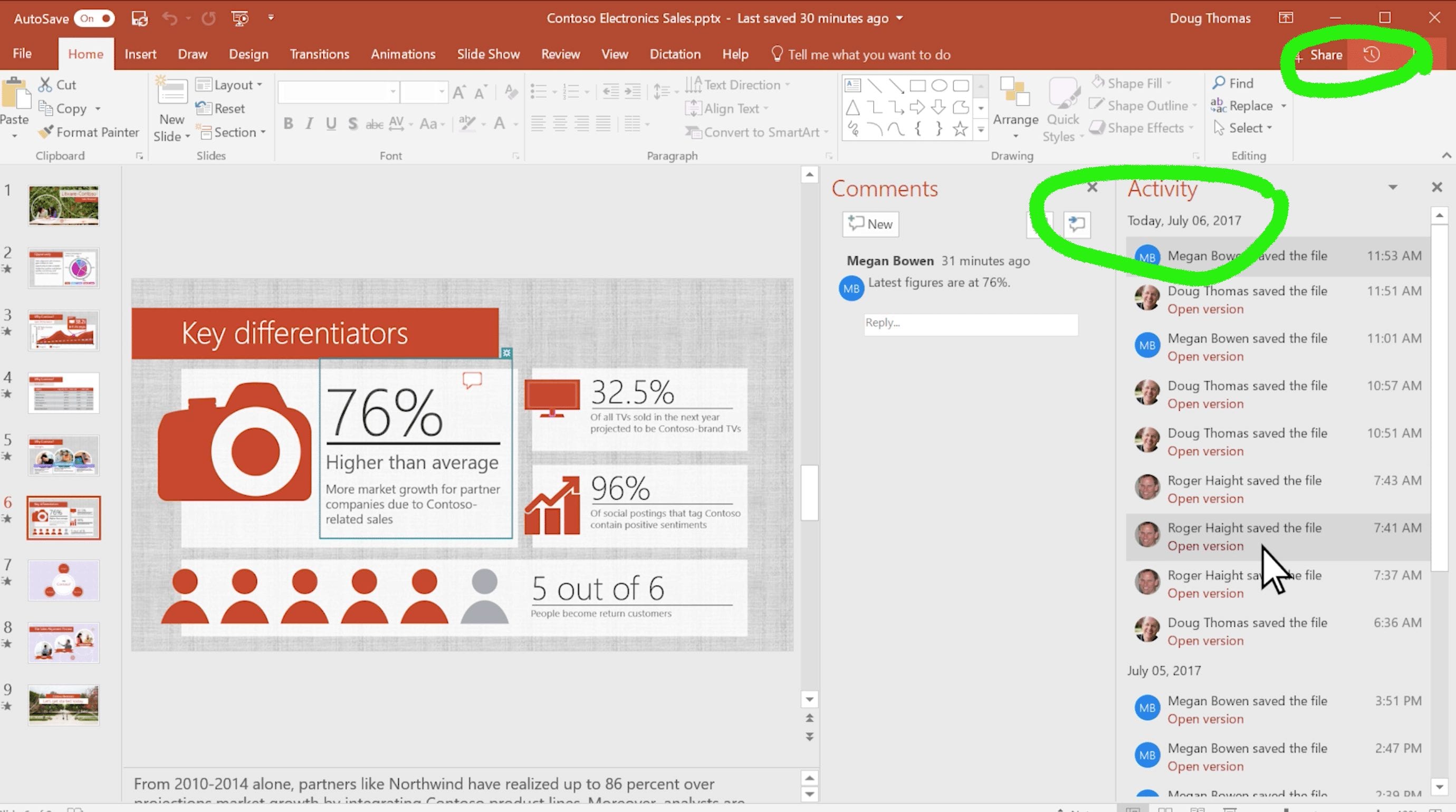
Step 3: Click on the icon for “While You Were Away.” This shows you all the Activity or modifications that happened since you last opened the file. You can click on each change and see the modified version.
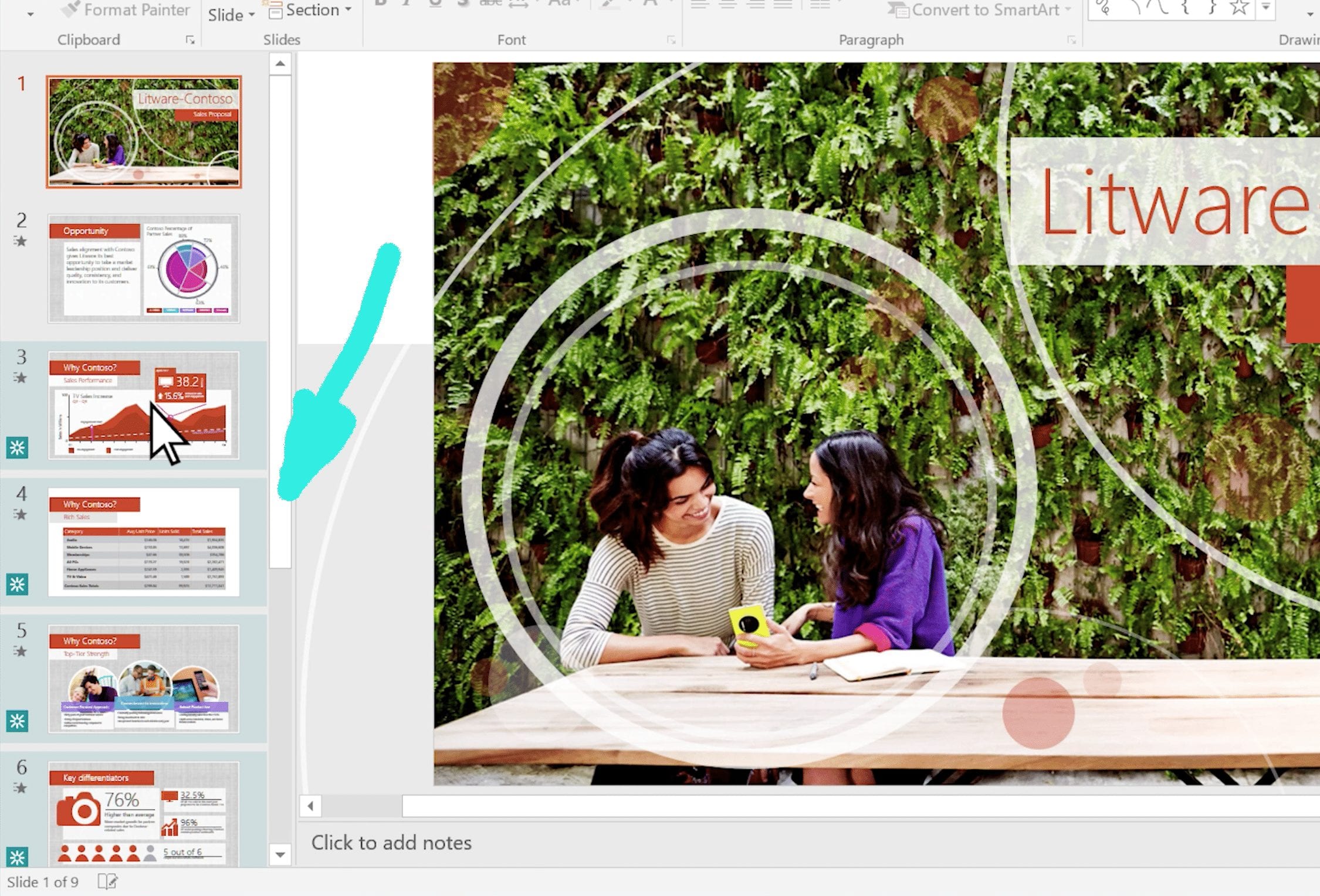
Step 4: You can also look at your slide thumbnails on the left-hand side of your PowerPoint. If slides are highlighted in turquoise and have a little starburst icon, that means they have been changed. Click on one of these changed slides.
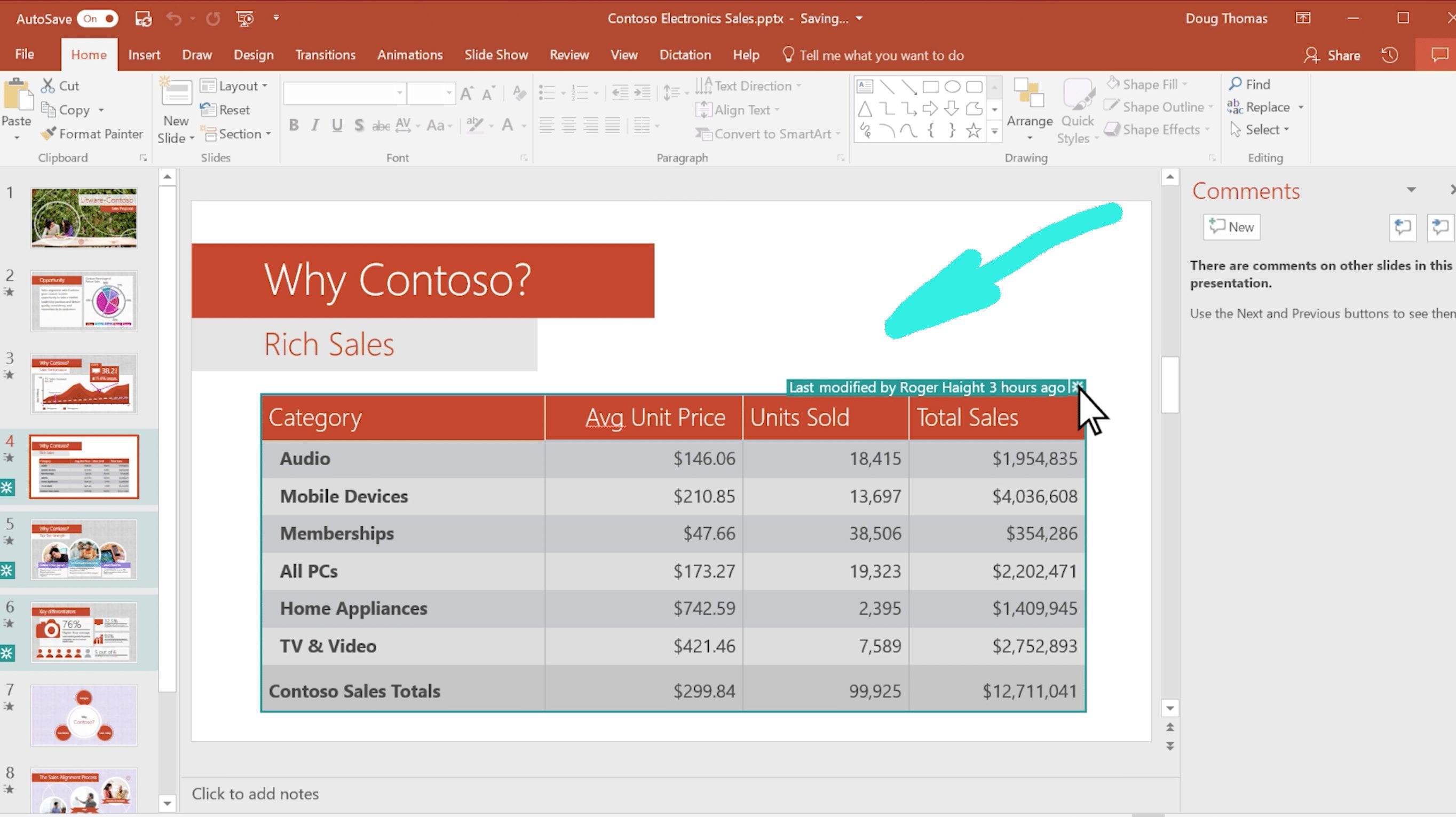
Step 5: Look for the turquoise starburst icons in the slide you opened. They will indicate a changed feature.
Step 6: If there is an orange speech bubble showing up, this indicates that someone left a comment.
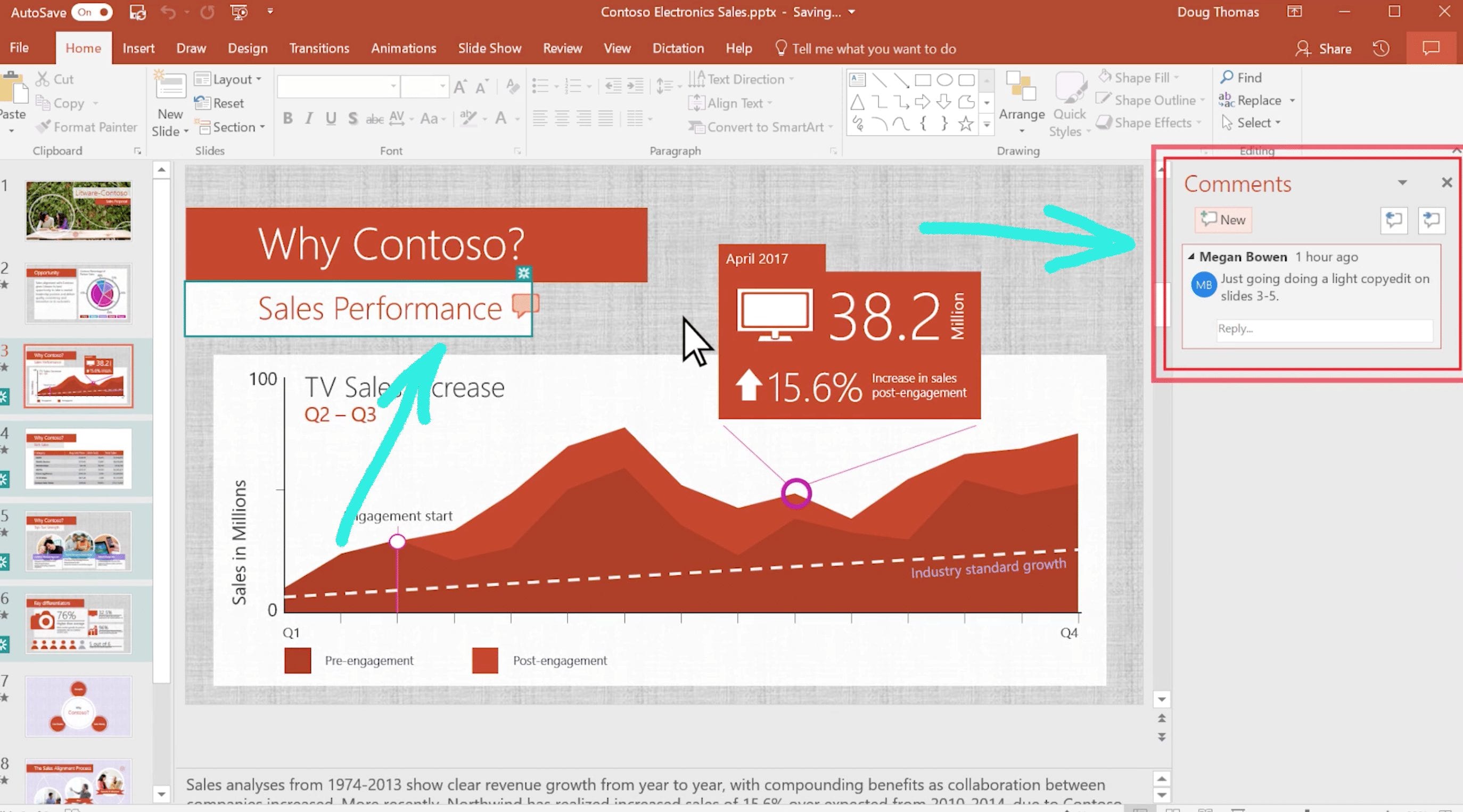
Step 7: Navigate to the next turquoise slide. You will notice that the slide you were just looking at no longer has the highlighted turquoise shading. This is because you have now already looked at those new changes.
And that’s all there is to it! Now you can easily review changes and comments that your team members made while you were away!